# Access documentation for the "mean" function
help(mean)
# or you can use
?mean4 RStudio Interface Components (1.3)
4.1 Learning Outcomes
By the end of this tutorial, you should:
be familiar with the different panes in RStudio
understand how packages are installed and used within R
be able to use some of the most common keyboard shortcuts in R
4.2 RStudio Interface
The RStudio interface contains a number of different windows. Many of these can be moved around, and you can create different working environments that best suit your preferences and purposes.
4.2.1 Console
The Console window is where you see the commands that have been executed in R.
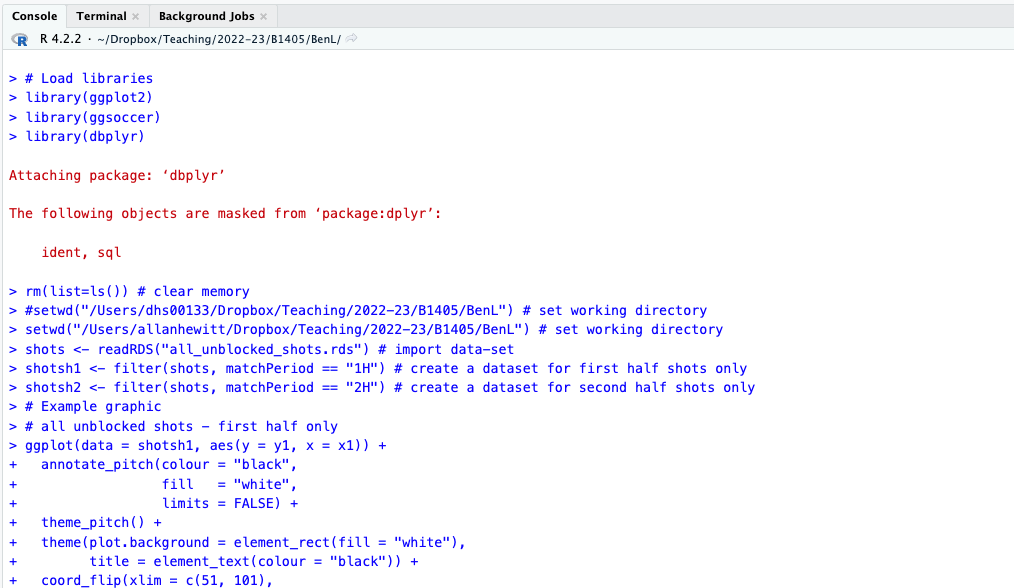
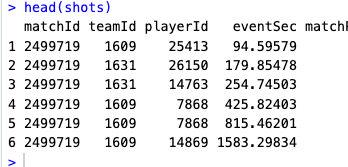
You can type commands directly into the Console, for example here I have entered the command ‘head(shots)’:
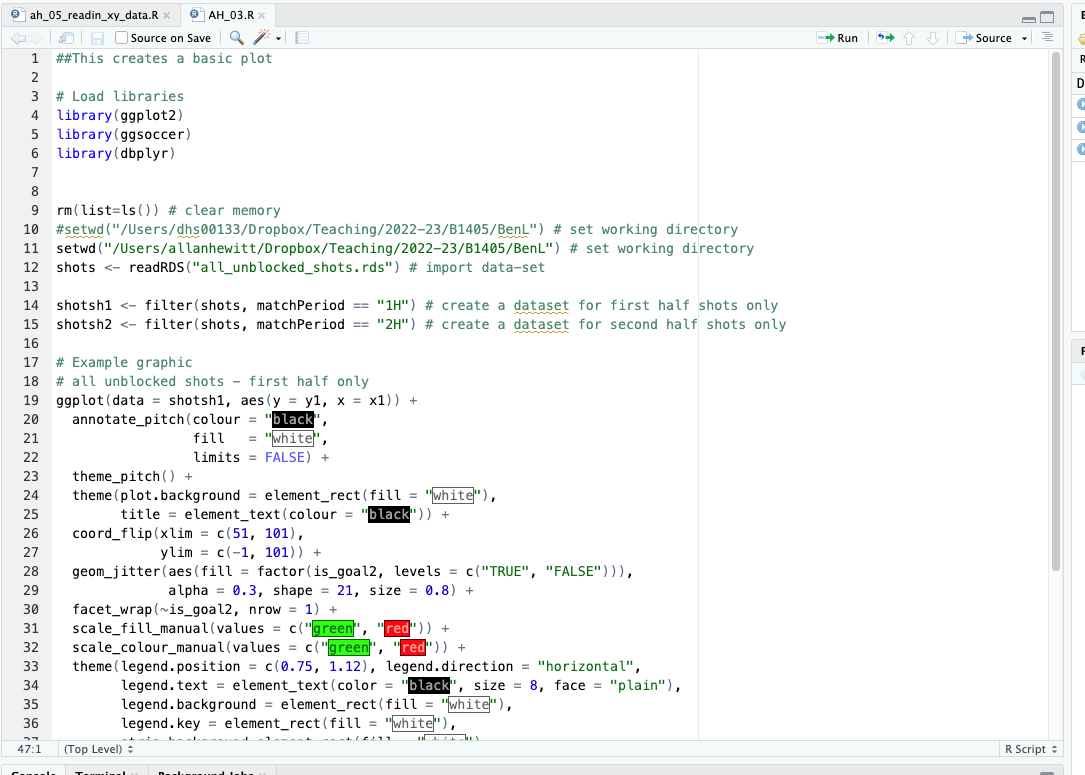
4.2.2 Script editor
Rather than typing commands directly into the Console window, you can write scripts in the Script Editor. You can run full scripts from here, or work through scripts in sections. You can also save and load scripts, and you can call other scripts from within your script.
It is likely that you will spend most of your time using the Script editor.
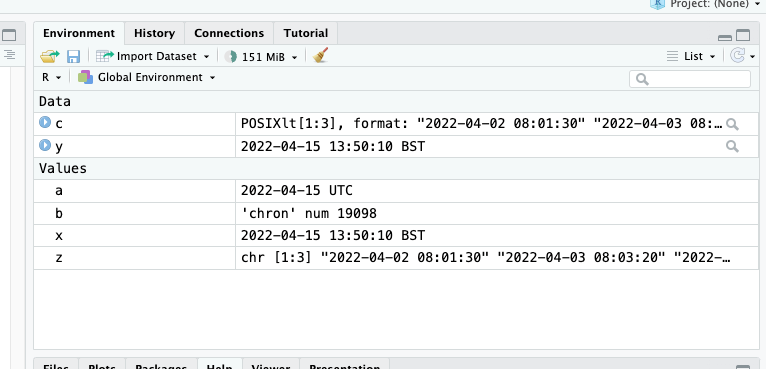
4.2.3 Environment
The Environment window allows you to view variables, data, and functions in the current workspace:
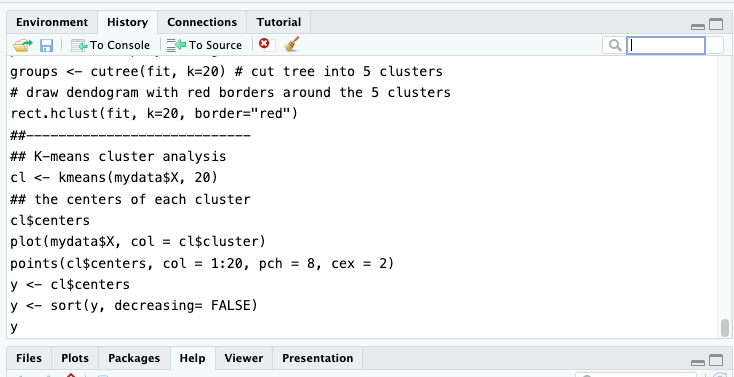
4.2.4 History
The History window allows you to access previously executed commands:
4.2.5 Plots
Any plots you create are presented in the Plots window:
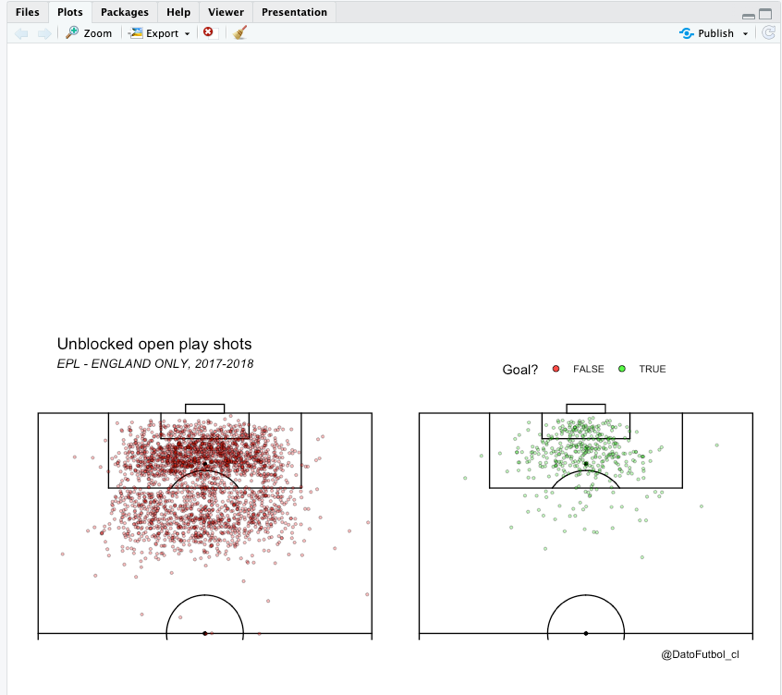
All your plots are stored here, and you can easily save and/or export plots from this window.
4.2.6 Packages
When you load RStudio (or R), you automatically load the ‘base’ package. This lets you do lots of things, but we often want to take advantage of the many additional packages that have been created to extend R’s functionality.
Tip
One of the issues you may run into when working with someone else’s R code is that they have used a package that you don’t have installed locally. It’s always worth checking what packages they’ve used, by looking at the first few lines of each script.
First, you need to download and install the package you wish to use. You only need to do this once on each computer you are using.
Go to Tools -> Install Packages.
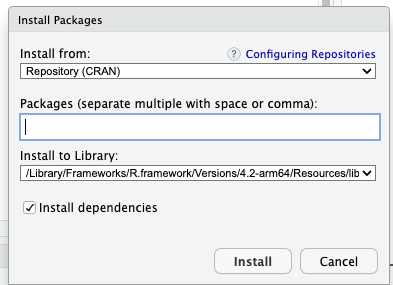
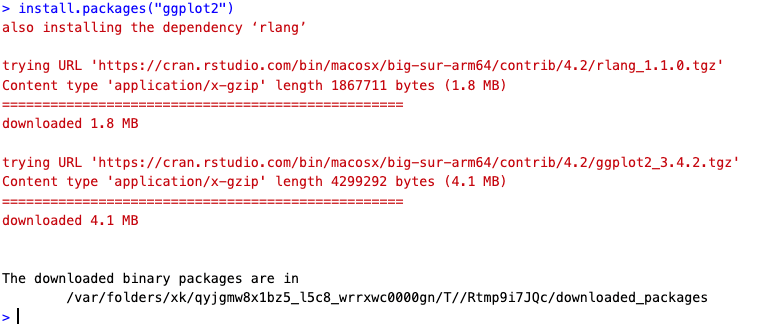
Type the name of the package you wish to install. Here, I’m going to install a package called ‘ggplot2’.
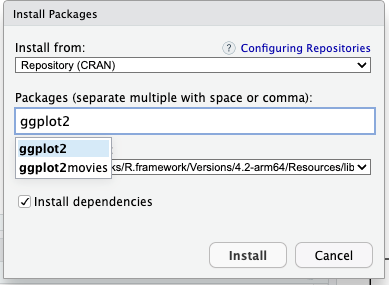
Now, click ‘install’ and the package will install to your computer. Remember, you only have to do this once on each computer you use. You do need to load the library each time you use it (see below).
Now, each time you wish to use the package, you need to load it. The easiest way to do this is to use the ‘library’ command at the start of your script. For example, these three lines of code load three packages (‘ggplot2’, ‘ggsoccer’, ‘dbplyr’). Those packages are then available to you. If you don’t have them installed, you’ll need to download them first.
library(ggplot2) # loads the ggplot2 package, assuming you have it installed.
library(ggsoccer) # loads the ggsoccer package
library(dbplyr) # loads the dbplyr package
Also note that, in the code above, the hash sign ‘#’ is used in R to indicate a comment, rather than a line of code to be executed.
You need to put a hash at the start of every line you wish to comment.
4.2.7 Help when using packages
R’s in-built documentation is incredibly helpful for understanding what a specific function does, its inputs, outputs, and potential caveats. To access the documentation for a particular function in R, you can use the help() function or simply type ?.
Example:
You can also use the help() function to get information on datasets in R (note that R comes with a number of existing datasets built-in, which you can use to practice on).
# Access documentation for the "mtcars" dataset
help(mtcars)
Exercise 1: Access the documentation for the median() and summary() functions.
The documentation for each R function typically consists of the following sections:
- Description: A brief overview of what the function does.
- Usage: How the function is used, including the necessary parameters.
- Arguments: Detailed description of the function’s arguments.
- Details: More specific information about the function’s behavior.
- Value: The output of the function.
- See Also: Links to related functions.
- Examples: Some working code examples demonstrating the function’s use.
Exercise 2: Access the documentation for the plot() function and identify all these sections.
4.2.8 Help with libraries
As you know, the library() function in R is used to load packages. Once a package is loaded, you can use help() or ? to access its documentation.
# Load the 'ggplot2' package
library(ggplot2)

# Access its documentation
help(package = "ggplot2")
This will provide a list of all functions available in the ggplot2 package, and you can then dive deeper into the function you’re interested in.
Exercise 3: Install and load the dplyr package, then access its documentation.
Some packages come with vignettes - detailed documents providing a comprehensive overview of the package, including illustrative examples. You can access vignettes using the vignette() function.
# List all vignettes for 'ggplot2' package
vignette(package="ggplot2")
To access a specific vignette, just provide its name:
# Access the 'ggplot2-specs' vignette
vignette("ggplot2-specs")
Exercise 4: List all vignettes for the dplyr package.
4.3 Creating and Managing RStudio Projects
4.3.1 Creating a new RStudio project
4.3.1.1 Steps to create a new project
Creating a new RStudio project is relatively straightforward. Follow the steps below:
Open RStudio.
In the top-right corner of the RStudio interface, click on File > New Project. This will open a new dialog box.
Choose New Directory if you want to create a project in a new directory, or choose Existing Directory if you want to add a project to a pre-existing directory.
If you choose New Directory, you will need to choose the type of project to create. For most purposes, New Project is sufficient.
Provide a directory name for your project. This will be the folder where your project is stored.
Browse to the location where you want to create the project and click on Create Project.
Exercise 1: Follow the steps above to create a new project in RStudio.
4.3.1.2 Importance of creating a separate project for each new work
You are likely to create a large number of R scripts and files during your MSc SDA programme. It can sometimes be tricky to keep track of everything, especially if you wish to return to something at a later date.
Therefore, I recommend that you create a new R Project for each analysis or tutorial you conduct.
Creating separate RStudio projects for each new work has a number advantages:
Isolation: Each project operates independently of others. This means that workspace variables, loaded packages, and options are specific to each project, reducing the chance of conflicts between different works.
Reproducibility: By keeping the data, code, and outputs for a project in one place, it’s easier for others (or your future self) to reproduce your work. You dissertation advisor, for example, may wish to look at your analysis.
Organization: Separate projects help keep your work organized. Each project is stored in its own directory, making it easier to manage files and resources related to the project.
4.3.1.3 Example: Creating a new project called ‘Data_Analysis’
Let’s walk through creating a new project named ‘Data_Analysis’.
Open RStudio.
Click on File > New Project.
Choose New Directory.
Choose New Project.
For the directory name, enter Data_Analysis.
Browse to your desired location and click Create Project.
This will create a new RStudio project named ‘Data_Analysis’ in your chosen location. All files, scripts, and data associated with this project should be stored in this directory.
Exercise 2: Follow the steps above to create your own ‘Data_Analysis’ project.
4.3.2 Organizing files and folders within a project
4.3.2.1 Creating and Saving R Scripts within a Project
Creating a new R script is simple - go to File > New File > R Script
By default, when you save this file it will be stored in the project you are currently working in (which is shown at the top of the RStudio window).
4.3.2.2 Installing and Using Packages in a Project
We have previously noted the importance of packages. Remember, you need to have the package installed locally if you want to use it.
You can ensure this takes place within your script using the following:
# Installing dplyr package from CRAN
install.packages("dplyr")
# Installing multiple packages
install.packages(c("dplyr", "ggplot2", "tidyverse"))You can then call the package at the start of your script:
# Loading dplyr package
library(dplyr)
You can call multiple packages in the same code:
# Loading multiple packages
packages <- c("dplyr", "ggplot2", "tidyverse")
lapply(packages, library, character.only = TRUE)
4.4 Version Control with Git and GitHub
Version control is a crucial element in maintaining the reproducibility and traceability of your data analyses and your coding. It’s a system that records changes to a file or set of files over time, enabling you to recall specific versions later.
This is especially important as it allows you to backtrack and understand every step of your process. It also assists in working on projects where multiple analysts (such as members of your group) are involved.
4.4.1 Prerequisites
Before you get started, make sure you have installed:
- R and RStudio
- Git
You should also create a GitHub account if you haven’t got one yet.
4.4.2 Configure Git with RStudio:
- Open RStudio.
- Go to Tools > Global Options.
- In the Global Options window, go to Git/SVN.
- Ensure that the path for the Git executable is correct. If Git is installed correctly, RStudio usually detects it automatically.
- Click OK.
4.4.3 Configuring Git
It’s important to set your Git username and email because every Git commit will use this information.
- Open RStudio.
- Go to the terminal tab (or open a new terminal window).
- Type in the following:
git config --global user.name "Your Name"
git config --global user.email "youremail@example.com"
Make sure to replace “Your Name” and “youremail@example.com” with your real name and email address.
4.4.4 Create or clone a repository:
To Create a New Repository: - Go to GitHub and log in. - Create a new repository. - In RStudio, go to File > New Project > New Directory > Version Control > Git. - Paste the repository URL and select a location to save locally. - Click Create Project.
To Clone an Existing Repository: - Go to GitHub and navigate to the repository. - Click the green Code button and copy the repository URL. - In RStudio, go to File > New Project > Version Control > Git. - Paste the repository URL and choose a location to save it. - Click Create Project.
4.4.5 Using Git with RStudio:
- Committing: Whenever you make changes, go to the Git tab in RStudio. You’ll see the files that have been changed. Check the files you want to commit, write a commit message, and click Commit.
- Pulling: Before making changes, especially if you’re collaborating with others, you should pull any recent changes from the repository. Click the blue down arrow or Pull button in the Git tab.
- Pushing: After committing your changes, you can push them to GitHub by clicking the green up arrow or Push button in the Git tab.
4.4.6 Making initial commit
Create a new R script or use an existing one in the ‘Data_Analysis’ project. Save the file in the project directory. Go to the ‘Git’ tab in the upper right pane in RStudio. You should see your file listed there. Click on the checkbox next to the file name to stage it for commit. Click on ‘Commit’. A new window will open. In the ‘Commit message’ field, type a message that describes the changes you made. For example: “Initial commit”. Click ‘Commit’. Click ‘Close’.
4.4.7 Pushing changes to GitHub
- In the ‘Git’ tab, click on the ‘Push’ button.
- If asked, enter your GitHub username and password.
- Click ‘OK’.
- Your initial commit is now pushed to GitHub. You can confirm this by checking your ‘Data_Analysis’ repository on GitHub.
4.5 Best Practices for RStudio Project Management
Structure and organise projects for better workflow (use consistent filenames, save all your files in the same folder, create versions of files rather than overwriting). I tend to use underscores to create meaningful filenames (e.g. ‘ah_tutorial1_dataset1_april2023.csv’)
Regularly saving and backing up project work - see below.
4.5.1 Saving RStudio projects
Important
At this level, you should be well aware of the importance of making regular backups of your work, and saving incremental versions of your files. Please make sure you are familiar with these concepts, and that you always have access to backup versions of your work (whether data, R scripts, essays etc.)
4.6 Keyboard Shortcuts and Productivity Tips
Here are some helpful keyboard shortcuts that will save you some time:
4.6.1 General
Open a new file: Ctrl + Shift + N (Windows/Linux), Cmd + Shift + N (Mac)
Save the current file: Ctrl + S (Windows/Linux), Cmd + S (Mac)
Open a new project: Ctrl + Shift + P (Windows/Linux), Cmd + Shift + P (Mac)
Switch between tabs: Ctrl + Tab (Windows/Linux), Cmd + Shift + { or } (Mac)
4.6.2 Console and Script Editor}
Run the current line or selection: Ctrl + Enter (Windows/Linux), Cmd + Enter (Mac)
Run the entire script: Ctrl + Shift + Enter (Windows/Linux), Cmd + Shift + Enter (Mac)
Clear the console: Ctrl + L (Windows/Linux), Cmd + L (Mac)
Insert or remove a comment: Ctrl + Shift + C (Windows/Linux), Cmd + Shift + C (Mac)
4.6.4 Code Completion
Auto-complete a function or variable name: Tab
Show function arguments: Ctrl + Shift + Space (Windows/Linux), Cmd + Shift + Space (Mac)
4.6.5 RStudio Panels
Switch to Console panel: Ctrl + 1 (Windows/Linux), Cmd + 1 (Mac)
Switch to Script Editor panel: Ctrl + 2 (Windows/Linux), Cmd + 2 (Mac)
Switch to Environment panel: Ctrl + 3 (Windows/Linux), Cmd + 3 (Mac)
Switch to History panel: Ctrl + 4 (Windows/Linux), Cmd + 4 (Mac)
Toggle between Source and Console panels: Ctrl + Shift + 1 (Windows/Linux), Cmd + Shift + 1 (Mac)
4.7 Maximizing Efficiency
Here are a few tips, from experience, on how to maximise your efficiency when working in RStudio. Some of these repeat concepts covered previously in this tutorial.
Keyboard Shortcuts: As noted above, keyboard shortcuts are the easiest way to rapid coding. For example, use Ctrl + Enter to run a current line or selected lines of code, Ctrl + Shift + N to create a new script, and Ctrl + S to save your work. Spend some time learning the keyboard shortcuts in RStudio to speed up your work.
Use R Packages: As we’ve seen, the strength of R lies in its vast ecosystem of packages. Packages like ‘dplyr’ for data manipulation, ‘ggplot2’ for data visualization, and ‘data.table’ for handling large data sets can drastically speed up your workflow. Remember to use install.packages(“package_name”) to install new packages and library(package_name) to load them in your script.
Project Management Best Practices: Keeping your projects organised will save you time and headaches. Create a new project for each independent work. Keep your scripts, data files, and output files organized in separate directories. Consistently name your files to make it easy to identify their purpose.
Optimising the RStudio Interface: RStudio allows you to customize your layout (i.e., the placement of the console, source, environment, etc.). Find the layout that best suits your workflow. Additionally, use the ‘Zoom’ feature to focus on a single pane, and use tabs to work with multiple scripts or documents at once.
4.8 Further Comments for Learning R
R is an enormously powerful language and, in this module, we’ll only really scratch the surface of what it can do. There are many different ways to approach the same task and you’ll likely develop your own preferences and strategies as you become more familiar with R. You may notice that Xanne and myself will each approach things slightly differently as well!
Some useful resources for learning about R were provided in Section 3.7 (I’m not endorsing these, but simply noting that I have found them useful myself):
4.9 Practical Activity
Exercise 1: Create a New Project
Create a new RStudio project and name it “My_First_Project”.
In your new project, create three new directories: ‘Scripts’, ‘Data’, and ‘Outputs’.
Exercise 2: Create and Save an R Script
Within the “My_First_Project” project, create a new R script.
In this script, write a command to print “Hello, World!” and save this script in the ‘Scripts’ directory as ‘hello_world.R’.
Run the ‘hello_world.R’ script and observe the output in the console.
Exercise 3: Install and Use a Package
In the ‘hello_world.R’ script, add commands to install the ‘ggplot2’ package (use install.packages()) and then load it (use library()).
Create a basic scatter plot using the ‘mtcars’ dataset and the ‘ggplot2’ package. Save this plot as a PDF in the ‘Outputs’ directory.
Exercise 4: Use Keyboard Shortcuts
Use a keyboard shortcut to run the line of code that loads the ‘ggplot2’ package in your ‘hello_world.R’ script.
Use a keyboard shortcut to save the ‘hello_world.R’ script.
Exercise 5: Customize RStudio Layout
Customize your RStudio layout by moving the panes to your preference.
Experiment with the ‘Zoom’ feature and tab management.